
Set the local price currency as the source and your familiar budgeting currency as the target. Use Currency DJ’s wheel to scan nearby prices and exact entry for the item you may buy, then allow room for tax, tips, spreads, and fees. If a terminal offers more than one billing currency, compare the actual totals and your issuer’s terms rather than assuming the app estimate is the charge you will receive.
Use the price-tag direction
For a shelf, menu, or market price, source should match the printed local currency and target should match the currency in which you keep your budget. That direction answers the immediate question: approximately what does this local amount mean to me?
If you are working from a fixed home-currency budget, swap the pair. The reverse direction helps estimate how much local currency remains available, but it still does not include the specific fees of a future transaction.
Move quickly, then enter exactly
At a market or while comparing menu items, spin the wheel through the visible price range. The wheel changes step size with movement speed, so a faster gesture covers more ground and a slower gesture makes smaller adjustments.
When you narrow the choice to a specific item, tap the wheel and enter the exact printed amount. Currency-specific formatting handles different minor-unit conventions, while the conversion arithmetic remains local to the device.
Leave room around the estimate
The displayed reference estimate does not know whether tax is included, whether a restaurant will add service, how a card issuer sets its conversion, or whether an ATM adds a fixed fee. Round in the cautious direction and keep a buffer rather than treating the last decimal place as a promise.
Cash exchanges can also include a spread or commission that is not visible in a general reference rate. Compare the amount of destination currency you actually receive for the full amount you pay.
Handle a choice of billing currency carefully
Some terminals or ATMs offer to convert the transaction into another currency at checkout. The offered total is a separate commercial quote. Currency DJ can help you compare magnitudes, but it cannot see the operator’s hidden assumptions or your card agreement.
Read both displayed totals, identify any stated fee or exchange rate, and check your issuer’s foreign-transaction terms. Choose based on those concrete terms, not on a universal rule or on the Currency DJ estimate alone.
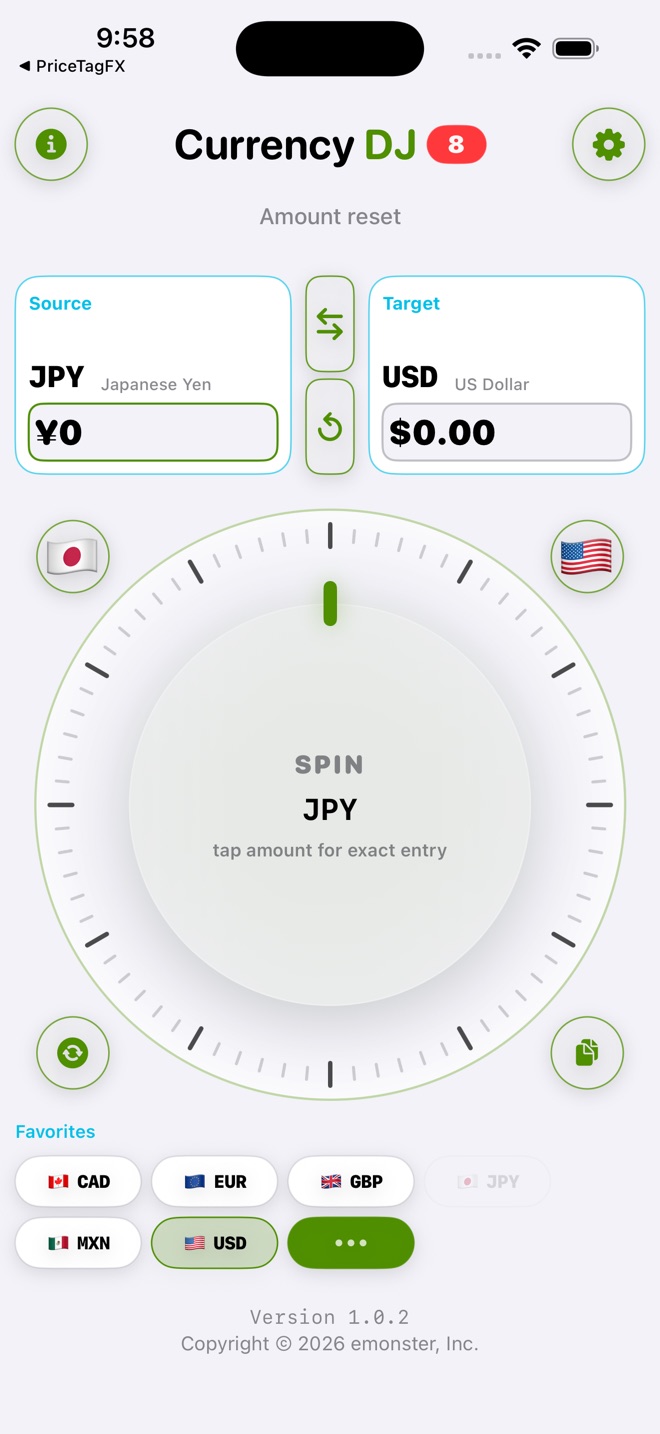
How to use Currency DJ
- Set the currency printed on the shelf, menu, meter, or ticket as the source.
- Set your everyday budgeting currency as the target.
- Spin the wheel to compare a range of nearby prices, then tap for exact entry on the item you are considering.
- Check whether the rate is fresh, cached, or stale before using the estimate.
- Add known taxes, tips, service charges, or fixed fees outside the conversion when they are not included in the posted price.
- At payment, compare the merchant or ATM totals and your issuer’s terms; record the receipt if you may need to reconcile the charge later.
Limits to keep in view
- Currency DJ results are estimates based on the latest available or a cached reference rate. They are not bank, card, ATM, checkout, exchange-counter, or tradable forex quotes.
- Currency DJ does not calculate merchant taxes, tips, service charges, card fees, ATM fees, or cash-exchange commissions.
- A checkout conversion offer and a provider reference rate can use different timing, spreads, and rounding.
- The app cannot recommend a billing currency without the terminal’s complete offer and your issuer’s terms.
- Offline results depend on previously downloaded snapshots and may be stale.
Troubleshooting
The shelf price uses commas or periods differently from your home convention.
Confirm the local grouping and decimal convention, then use exact entry. A misplaced separator can change the amount by orders of magnitude.
The terminal’s home-currency total differs sharply from the estimate.
Inspect the terminal’s rate, markup, and fees, then compare with your issuer’s alternative terms before choosing. Currency DJ is not the checkout quote.
A final card charge differs from the value saved at purchase time.
Check whether the charge settled later, whether gratuity or deposit adjustments occurred, and what conversion method or fee the issuer applied. Ask the issuer or merchant about the actual transaction.
You have no signal inside the store.
Use the stored result only if the pair is available, and inspect its freshness. Reconnect before a large purchase if the snapshot is old or missing.
Frequently asked questions
Should I round a shopping conversion?
Yes for quick budgeting. Round conservatively and keep a buffer for charges that the reference-rate estimate does not include.
Does Currency DJ include foreign transaction fees?
No. Those fees depend on the issuer, account, network, merchant, or ATM and must be added from the relevant terms.
Can Currency DJ tell me which currency to choose at checkout?
It can help compare the displayed magnitudes, but the choice depends on the operator’s offered rate and fees plus your issuer’s terms. It does not have that complete contract information.
Is exact entry better than the wheel for shopping?
Use the wheel to scan a range quickly and exact entry for a particular posted price. Both use the same underlying reference-rate snapshot.
Sources and further reading
- Currency DJ: FX Converter on the App Store — Apple’s current product listing for Currency DJ.
- Frankfurter exchange-rate API — Documentation for the reference-rate provider used by Currency DJ.
Make the next conversion tactile
Turn menus, fares, and shelf prices into quick planning estimates while keeping fees and the final checkout total in view.
Get Currency DJ on the App Store